
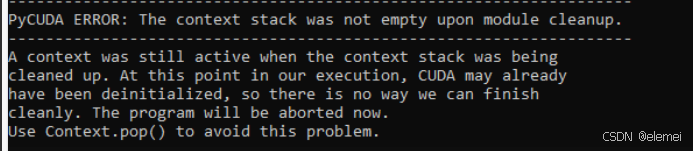
gprmax 运行gpu加速报错 PyCUDA ERROR: the context stack was not empty upon module cleanup的一种错误可能与解决方法
去年装完gprmax后一直没用,今年再打开发现 无法使用gpu加速了。报错如图
gprmax 3.0 安装、GPU配置与cmd、pycharm(或jupyter)运行gprmax详细教程-CSDN博客
参考上贴评论区各位大佬说法重装了gprmax,cuda问题还是没得到解决,于是去GitHub上搜了一下,发现问题可能出在环境上(下面帖子里的 beflowerh以及提出了解决方案,但本人实在水平有限,不知道cl文件在哪),按照下帖评论给出的demo进行测试,不能完成pycuda示例
demo代码(可以复制到pycharm试试):
# Sample source code from the Tutorial Introduction in the documentation.
import pycuda.driver as cuda
import pycuda.autoinit  # noqa
from pycuda.compiler import SourceModule

import numpy
a = numpy.random.randn(4, 4)

a = a.astype(numpy.float32)

a_gpu = cuda.mem_alloc(a.size * a.dtype.itemsize)

cuda.memcpy_htod(a_gpu, a)

mod = SourceModule("""
    __global__ void doublify(float *a)
    {
      int idx = threadIdx.x + threadIdx.y*4;
      a[idx] *= 2;
    }
    """)

func = mod.get_function("doublify")
func(a_gpu, block=(4, 4, 1), grid=(1, 1), shared=0)

a_doubled = numpy.empty_like(a)
cuda.memcpy_dtoh(a_doubled, a_gpu)
print("original array:")
print(a)
print("doubled with kernel:")
print(a_doubled)

# alternate kernel invocation -------------------------------------------------

func(cuda.InOut(a), block=(4, 4, 1))
print("doubled with InOut:")
print(a)

# part 2 ----------------------------------------------------------------------

import pycuda.gpuarray as gpuarray
a_gpu = gpuarray.to_gpu(numpy.random.randn(4, 4).astype(numpy.float32))
a_doubled = (2*a_gpu).get()

print("original array:")
print(a_gpu)
print("doubled with gpuarray:")
print(a_doubled)
报错:
Cannot find compiler 'cl.exe' in PATH这时问题已经明了了,在环境变量path里加入cl.exe的目录即可,下面这个帖子有cl文件的具体位置:简单来说就是新版本的visual studio的cl.exe文件在自己的安装目录下,而不是网上说的c盘了
如xxx\VisualStudio\VSIDE\VC\Tools\MSVC\14.37.32822\bin\Hostx64\x64
把环境变量添加完以后重启pycharm运行pycuda示例不再报错,gprmax中的gpu加速也能正常运行了 。
总结:
gprmax里的gpu加速不能用未必是软件自身的问题,可以先确认自己的pycuda能正常运行再进行其他的操作。
部分内容参考自:
gprmax 3.0 安装、GPU配置与cmd、pycharm(或jupyter)运行gprmax详细教程-CSDN博客文章浏览阅读1.9w次,点赞19次,收藏130次。gprmax 3.0 安装与cmd、pycharm(或jupyter)运行gprmax教程1. 下载gprmax包点击此处进入下载2. 安装2.1 安装anaconda(添加至环境变量)2.2.1 anaconda安装最后一步可选添加至环境变量和默认python解释器2.2.2 若安装anaconda是没选择添加至环境变量,可选择右键“我的电脑”>选择“属性”>高级系统设..._gprmax https://blog.csdn.net/weixin_44385758/article/details/101721599[Visual Studio C盘找不到VC/Bin文件]nvcc fatal : Cannot find compiler ‘cl.exe‘ in PATH_nvcc fatal : cannot find compiler 'cl.exe' in path-CSDN博客文章浏览阅读3.7k次,点赞6次,收藏10次。该问题是因为系统找不到cl.exe文件网上都说是要将文件目录加入到环境变量中,但我在电脑里找不到该目录。_nvcc fatal : cannot find compiler 'cl.exe' in pathhttps://blog.csdn.net/Bartender_VA11/article/details/133786305?ops_request_misc=%257B%2522request%255Fid%2522%253A%2522172443982916800207086186%2522%252C%2522scm%2522%253A%252220140713.130102334..%2522%257D&request_id=172443982916800207086186&biz_id=0&utm_medium=distribute.pc_search_result.none-task-blog-2~all~sobaiduend~default-3-133786305-null-null.142^v100^pc_search_result_base7&utm_term=nvcc%20fatal%20%20%20%3A%20Cannot%20find%20compiler%20%20cl.exe%20%20in%20PATH&spm=1018.2226.3001.4187https://github.com/gprMax/gprMax/issues/333
 https://github.com/gprMax/gprMax/issues/333

分享最新的 NVIDIA AI Software 资源以及活动/会议信息,精选收录AI相关技术内容,欢迎大家加入社区并参与讨论。
更多推荐


 17
17 0
0- 0


 已为社区贡献1条内容

所有评论(0)